
Documentation & setup guide
SoftGlaze PDF Invoices for WooCommerce: the complete manual
Generate professional PDF invoices, packing slips, proformas, credit notes, receipts and delivery notes from your WooCommerce orders, or create them by hand, with or without WooCommerce. Everything renders 100% locally on your own server.
Overview
One plugin, from a single invoice on an order email to a full self-service invoice website.
SoftGlaze PDF Invoices turns WooCommerce orders (and invoices you create by hand) into clean, professional PDF documents. The bundled dompdf engine runs on your own server: every logo, icon and font is embedded from local files, and generating a document never makes an outbound HTTP request. The default install talks to zero external services.
It scales with you. Start by attaching an invoice to your WooCommerce order emails; grow into a designed document set with custom templates; and, if you want, publish a public invoice-builder website where visitors sign up and make their own PDF invoices, all from the one plugin, driven by a modern React admin.
Six document types
Invoices, packing slips, proformas, credit notes, receipts and delivery notes, one template engine.
Local & private
PDFs render on your server. Only three opt-in features can ever reach the network, each off by default.
Works standalone
Create invoices by hand and run the builder site even with WooCommerce switched off.
Requirements & installation
| WordPress | 6.3 or newer |
|---|---|
| PHP | 7.4 or newer |
| WooCommerce | Required for order-based invoicing; optional for manual invoices and the builder site |
| PDF engine | dompdf is bundled, nothing to install. If it were ever missing, documents fall back to print-ready HTML |
| Order storage | Compatible with High-Performance Order Storage (HPOS); all order data is read through WooCommerce CRUD |
- Upload the plugin folder to
/wp-content/plugins/, or install the ZIP from Plugins → Add New. - Activate it on the Plugins screen.
- Open SoftGlaze Invoices → Settings and confirm your company, logo, bank and numbering details (they are pre-filled from your site and store).
- Open a WooCommerce order and click Generate Invoice PDF, or let auto-generation handle it on your chosen statuses.
Quick start: with WooCommerce
Get an invoice onto every order in a few minutes.
- Run the first-run setup wizard (company identity, currency and numbering) with a live preview of your first invoice number.
- Under Settings → Automation, choose the order statuses that auto-generate an invoice (for example "Processing" and "Completed").
- In the document × email matrix, tick which document attaches to which WooCommerce email, e.g. the invoice on the "Completed" email, the packing slip on "Processing".
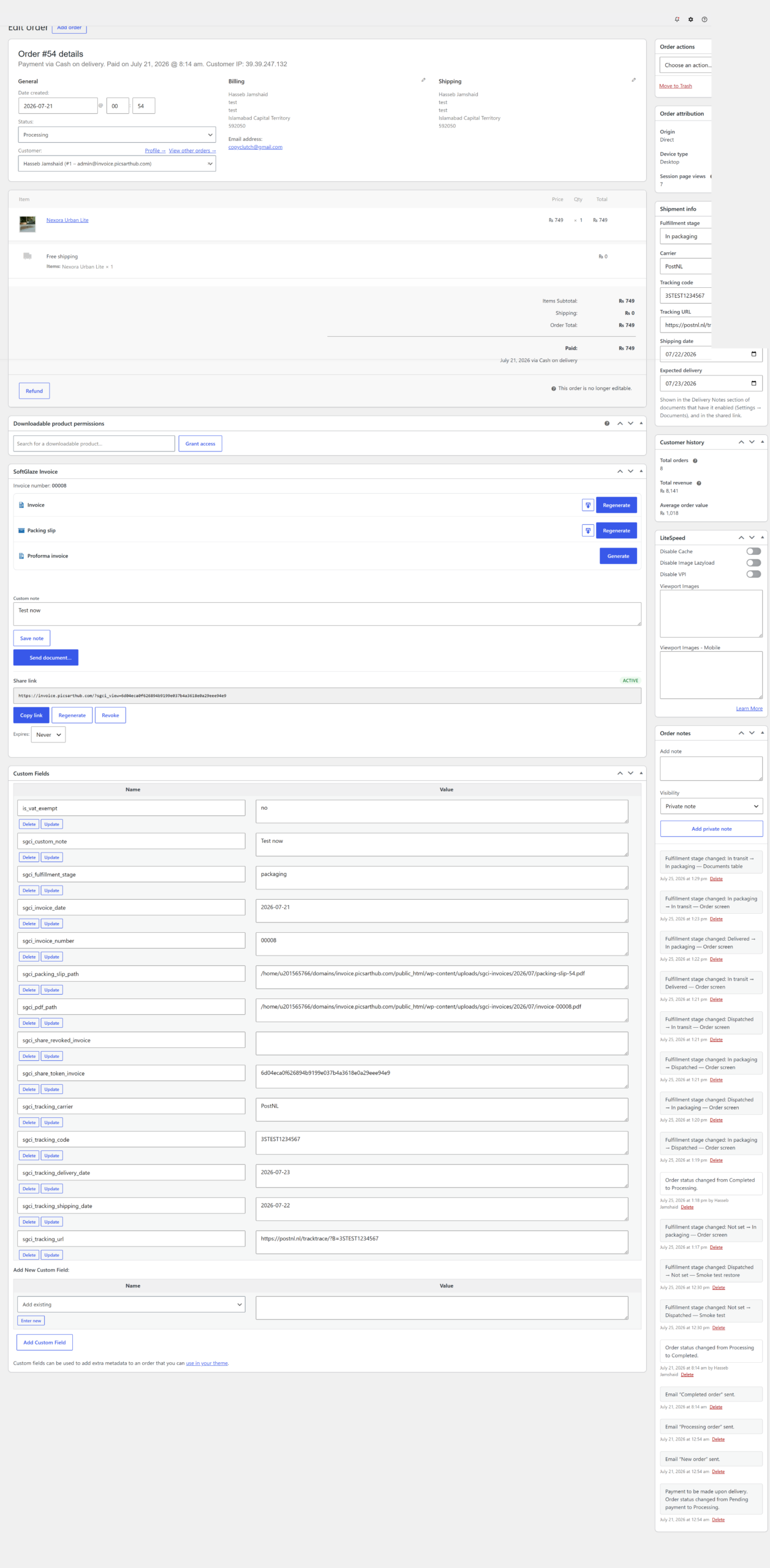
- Open any order: the SoftGlaze box lets you generate, view, email or download documents, set the fulfillment stage, and record carrier & tracking, on classic and HPOS order screens.
Quick start: manual / without WooCommerce
You can create invoices entirely by hand: the plugin no longer sits idle when WooCommerce is inactive.
- Open New invoice. Pick a saved client (clients are de-duplicated by email) or add one inline.
- Add unlimited line items (name, description, decimal quantity, unit price, cost price and tax rate).
- Choose currency, date, template and status (draft / sent / paid / void), then save.
- A race-safe number is assigned automatically, the PDF is generated into protected storage, and a share link is ready.
Document types
Six faces, one design system. Each type has its own template assignment and can use its own number sequence.
Invoice
The core document, from an order or created by hand.
Packing slip
Labels the customer block "Ship To" and omits payment terms; can show the fulfillment stage.
Proforma invoice
Its own race-safe sequence; a natural fit for the online-acceptance flow.
Credit note
Offered automatically on refund, referencing the original invoice; optional "show amounts as positive" display.
Receipt
An optional "Receipt vs Invoice" choice at checkout, with its own template and optional numbering.
Delivery note
Prints carrier, tracking number, shipping and expected-delivery dates on the invoice and/or packing slip (opt-in, per type).
Numbering
Numbering fits your books rather than the other way round.
- Sequential auto-numbering with prefix / suffix,
{YYYY}and{MM}placeholders, zero-padding and an optional yearly reset. - Or reuse the WooCommerce order number or the raw order ID instead of a counter.
- Separate, race-safe sequences for credit notes and proforma invoices, each with its own start / prefix / suffix / padding.
- Per-document-type invoice date source: order date, order-completed date, or generation date.
Automation & emails
Auto-generate
Create documents automatically on the order statuses you choose.
Email matrix
Attach the right document to the right WooCommerce transactional email.
Payment reminders
Email customers past their due date at the day-offsets you set; reminders stop the moment an order is paid.
Accountant export
On a chosen day each month, email your accountant a ZIP of last month's invoice PDFs plus a CSV index.
Fulfillment stages
Track where each order is with a safe parallel flow (In packaging → Dispatched → In transit → Delivered) that never touches WooCommerce's own order statuses. Set the stage from the order screen or inline in the Documents table; the dashboard shows live per-stage counters; each stage can send an optional customer email (off by default); and the current stage prints on packing slips. Every change is logged as a private order note.
Templates & the builders
Design your documents visually: start from a stock design or build your own.
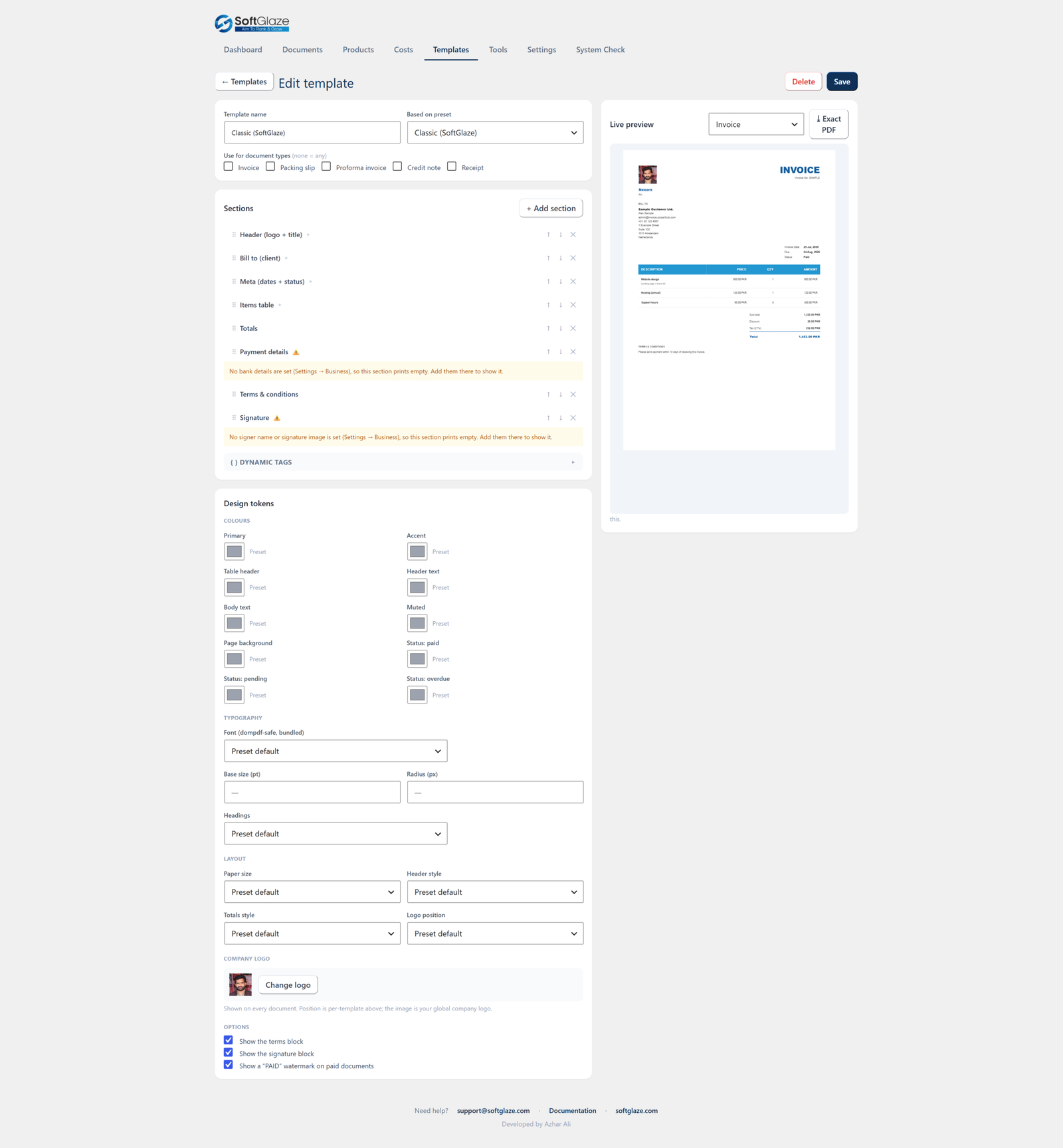
Begin from any of 10 stock designs (Classic, Minimal, Bold Navy, Elegant, Compact, Modern, Business, Professional, Letterhead, Receipt), then duplicate and edit. Each document type uses either its preset design or a named custom template you build; the assigned template wins wherever that document is generated. Export and import templates as JSON to move them between sites.
Two layout modes
Flow
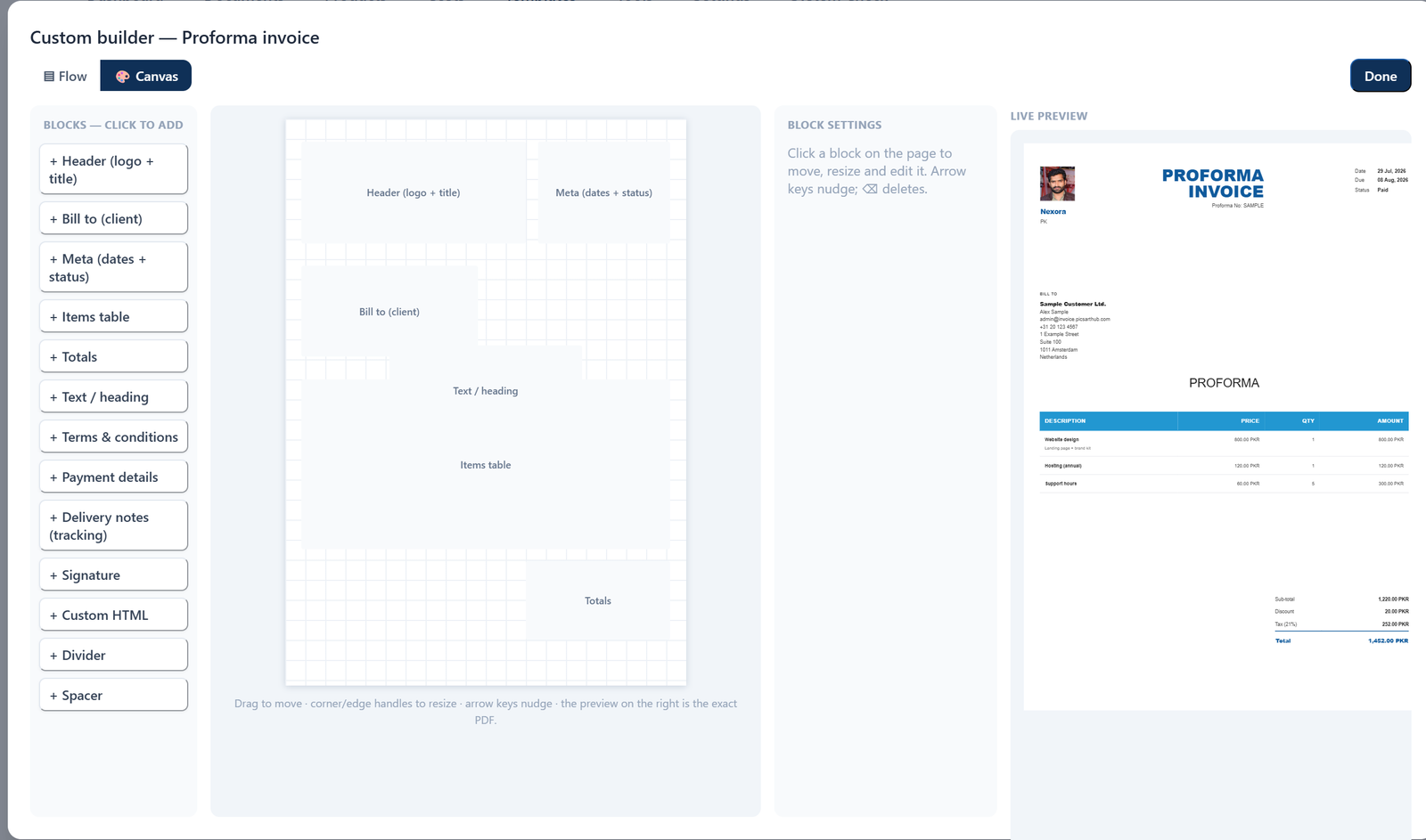
Sections stack down the page (header, bill-to, meta, items, totals, payment, terms, signature) and you reorder them, toggle what each shows, and choose which item columns print. This is the default and how every existing template renders.
Canvas (new in 2.28)
Place blocks freely anywhere on the page: drag to move, resize with corner/edge handles, nudge with the arrow keys, and layer front-to-back. Blocks are positioned as a percentage of the page (the same coordinates the PDF uses) so what you lay out is what prints.
Design tokens
Override colours, pick a bundled dompdf-safe font, set base size, heading case, corner radius, paper size (A4 / Letter), header and totals style, logo position, and upload your logo from the media library. Anything you leave alone inherits from the stock preset.
Live preview = exact PDF
A side-by-side preview renders through the same engine and template pipeline as the download, so a saved, assigned template prints exactly like the preview. The "Exact PDF" button opens the true output in a new tab.
Payments, deposits & client acceptance
Partial payments & deposits
Record one or more payments against any document (each with a date, amount, method and note) from a Payments panel on the manual invoice screen or a Payments box on the WooCommerce order (classic and HPOS). Once a payment exists:
- The PDF prints an Amount paid and Balance due pair beneath the total, on all 10 stock designs and your custom templates.
- The dashboard's "Unpaid outstanding" counts the remaining balance, not the gross total.
- Two template tags ({amount_paid} {balance_due}) are available in the builder.
- On WooCommerce orders the balance respects the order status: only Pending / On-hold show a balance; Processing and Completed count as paid; cancelled / failed / refunded show none.
Online client acceptance ("e-sign")
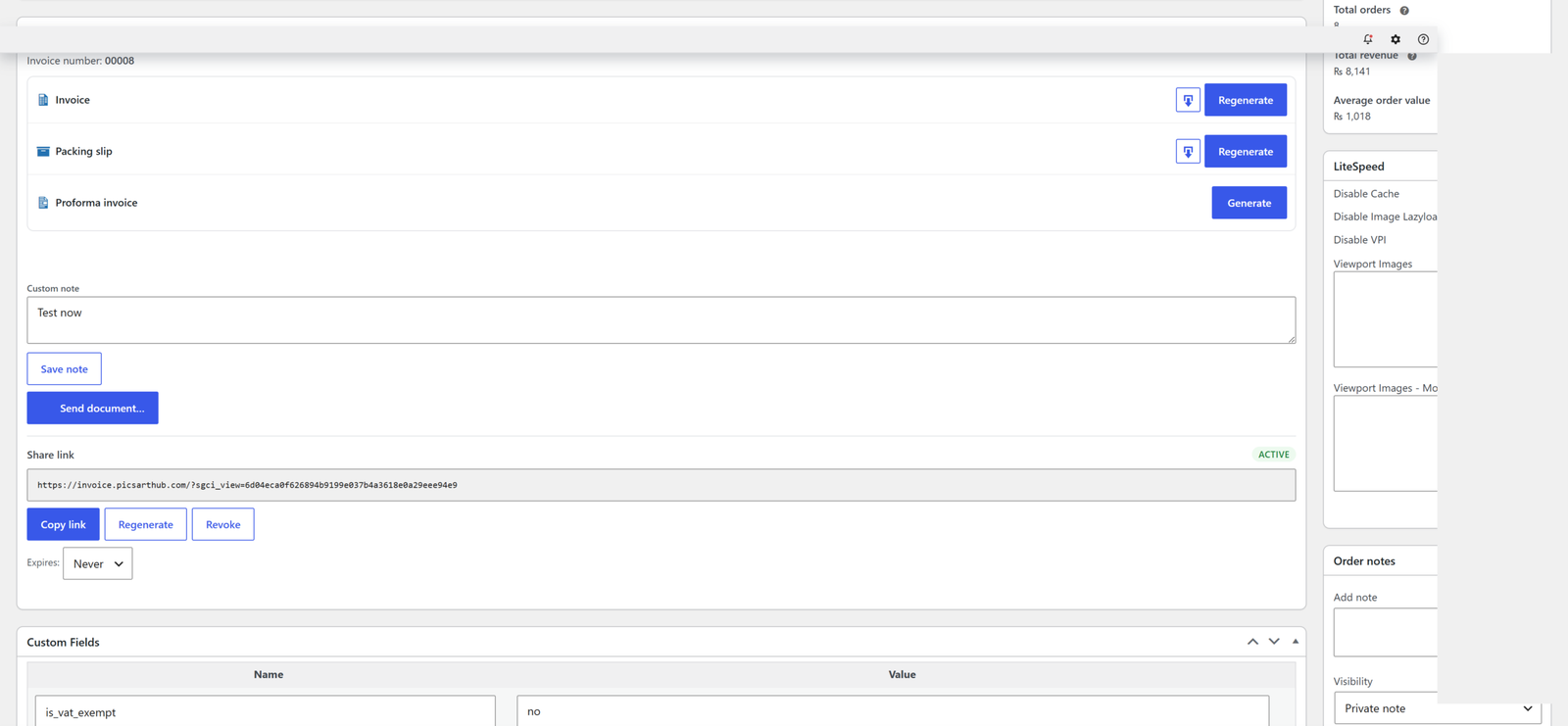
Turn on an Accept button on the public share link, per document type, typically a proforma or quote, off by default. The client types their name, ticks an agreement box and accepts; their name, the date/time and IP are recorded, an "Accepted online by …" stamp is added to the PDF, and the order screen logs who accepted (with a private note). Two tags ({accepted_by} {accepted_on}) are available.
Sharing, email & WhatsApp
Public share links
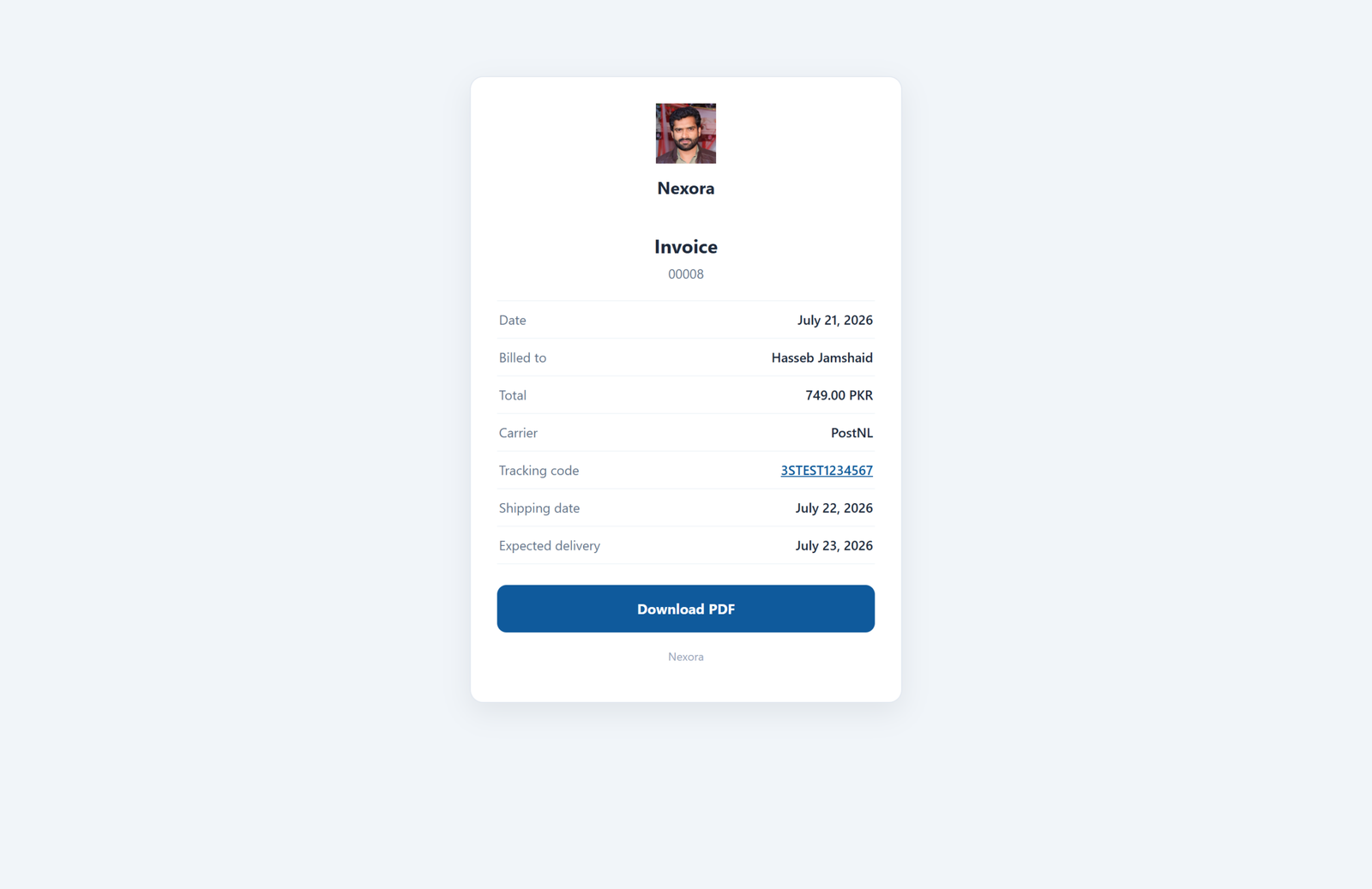
Every document can have a tokenised, no-login viewer page with a single-PDF download. Choose a per-document expiry (7 / 30 / 90 days or never), regenerate or revoke at any time, and optionally print the link as a QR code in the corner of the PDF (per document type). The QR image is generated locally.
Send by email
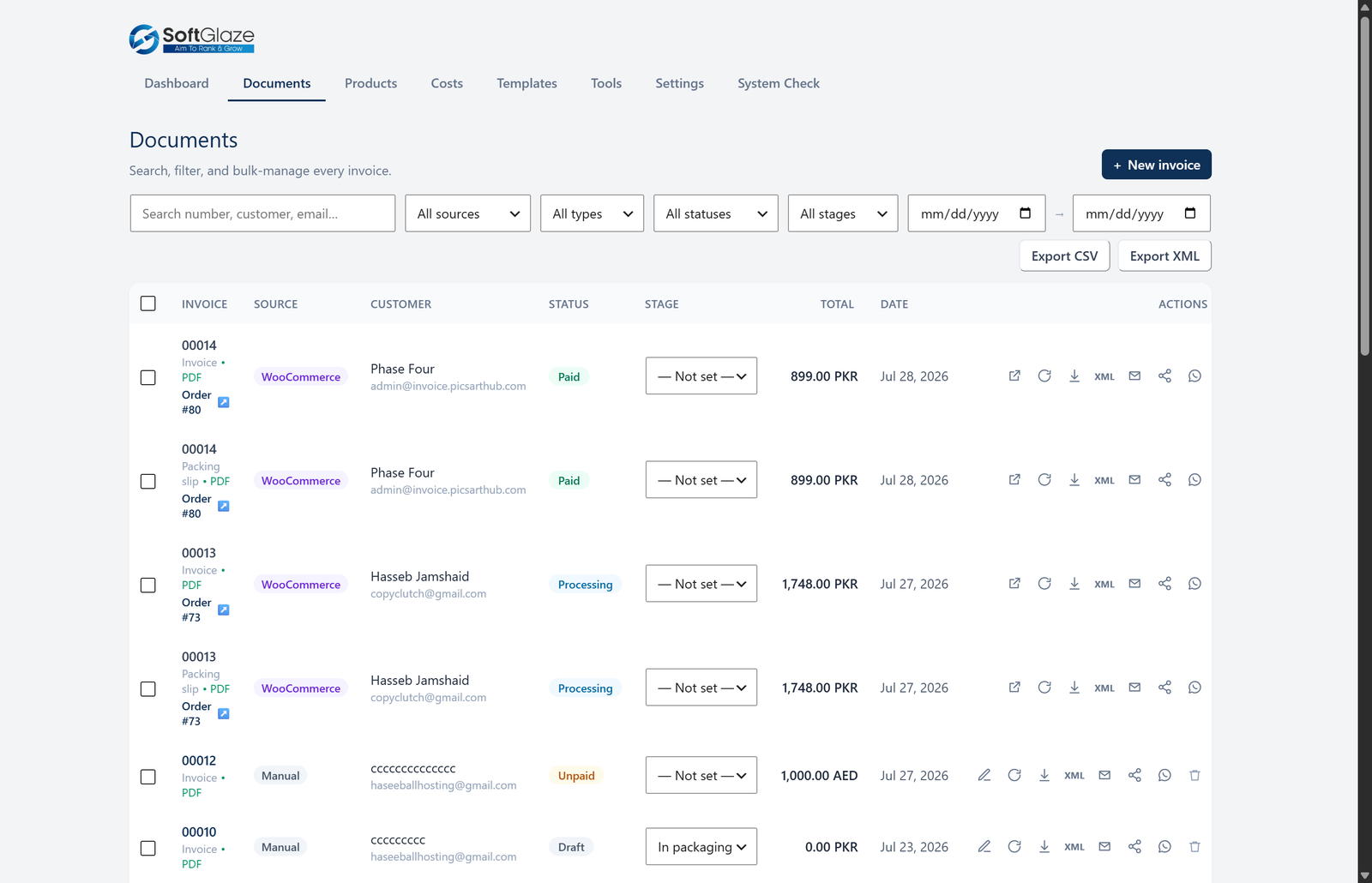
Send any document from the order screen or the Documents manager: an editable recipient (pre-filled with the billing email), subject and message, dynamic {tags} filled in on send, and a logged send history.
WhatsApp: click-to-chat
Every generated document gets a WhatsApp button on the order screen and the Documents manager. It opens WhatsApp (app or web) with the customer's number and a message containing the document's secure share link; your own WhatsApp sends it. The number is taken from the order's billing phone and turned into international format using the billing/store country. No API keys, and the plugin makes no request of its own.
WhatsApp: Cloud API server-send (optional)
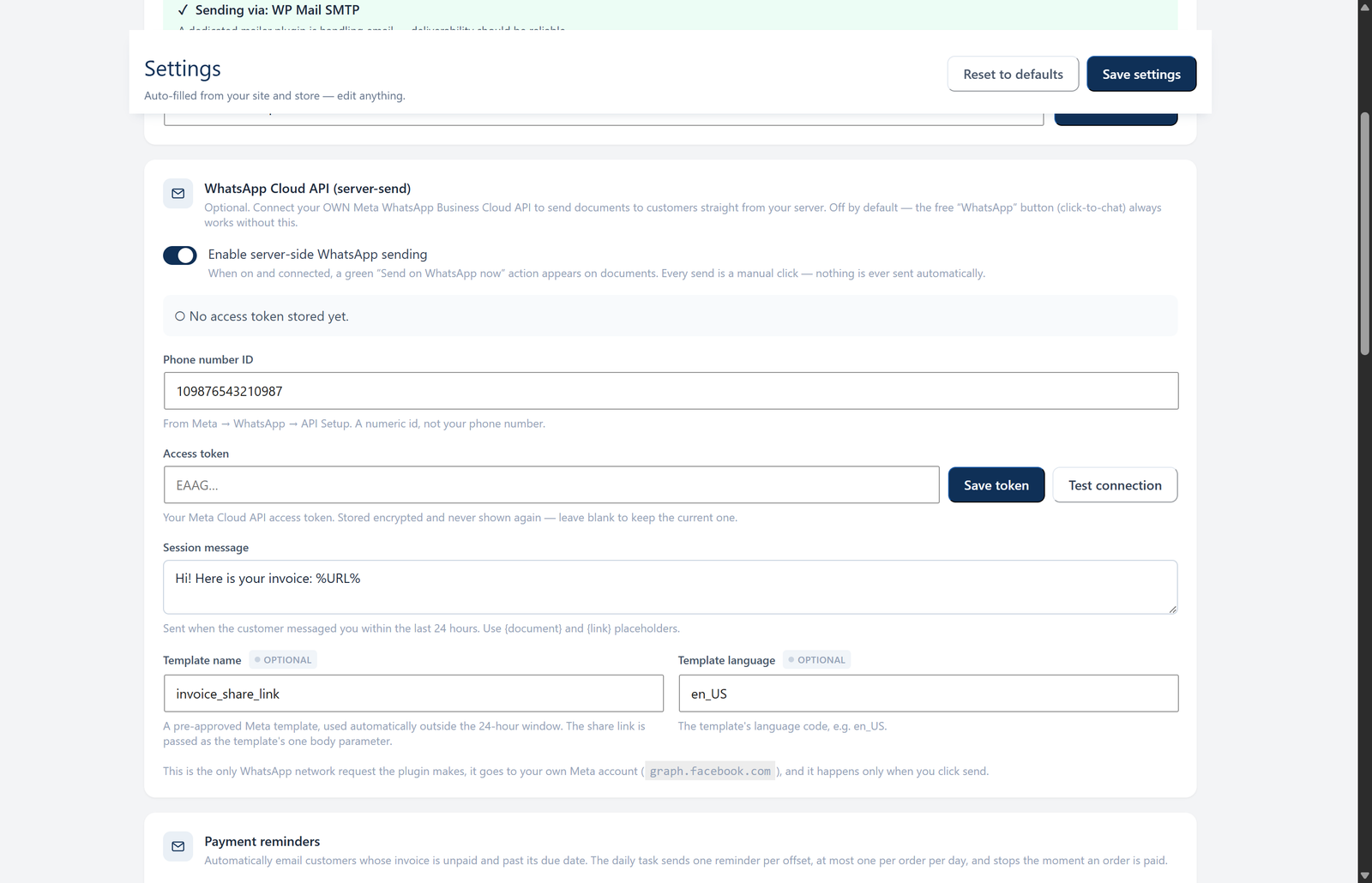
For hands-off sending, connect your own Meta WhatsApp Business Cloud API under Settings → Automations → WhatsApp Cloud API (phone-number ID + access token). A green Send on WhatsApp now action then delivers the share link straight from your server.
- Inside WhatsApp's 24-hour customer-service window it sends your editable session message.
- Outside that window it automatically falls back to your pre-approved message template.
- It is off by default, your access token is stored encrypted and never shown again, and every send is a manual click, nothing is sent automatically.
graph.facebook.com), and only when you click send. The free click-to-chat button needs none of this.Tax & compliance
VAT / fiscal-code at checkout
Collect a VAT number and/or a fiscal code / SSN at checkout, on both the classic and block-based checkout. Each field is independently optional or required and can be scoped to all countries, the EU only, or a country list. Server-side validation runs a per-country VAT format table (with the Italian Partita IVA checksum), the Italian Codice Fiscale checksum, and a generic fallback elsewhere. An optional EU VIES online lookup can be switched on (off by default), format and checksum checks always run locally first.
Compliance field packs
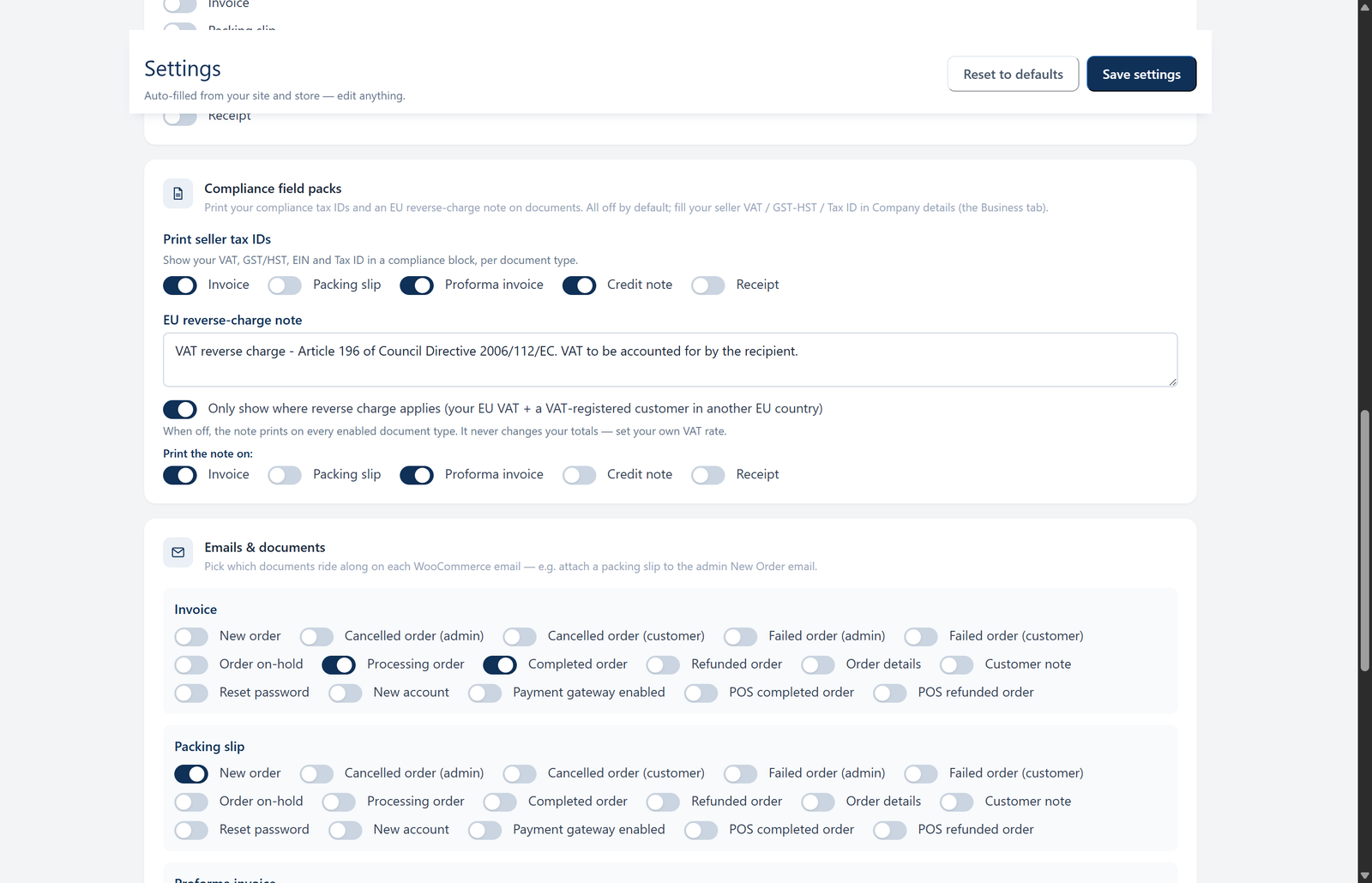
Show your seller VAT, GST/HST and a generic Tax ID in the company block (per document type, off by default), and print an editable EU reverse-charge note (defaults to the Art. 196 wording). In automatic mode the note appears only where reverse charge actually applies (intra-EU B2B with your EU VAT number and a VAT-registered customer in another EU country) or you can set it to always print on the enabled document types.
Italian e-invoicing (FatturaPA)
Generate the official FatturaPA 1.2 (FPR12) XML for invoices and credit notes, a per-document button in the Documents table, plus a bulk "Export FatturaPA" that ZIPs every document matching your current filters. Every file is validated locally against the Agenzia delle Entrate schema before download, and a System Check row confirms the pipeline.
Language & right-to-left
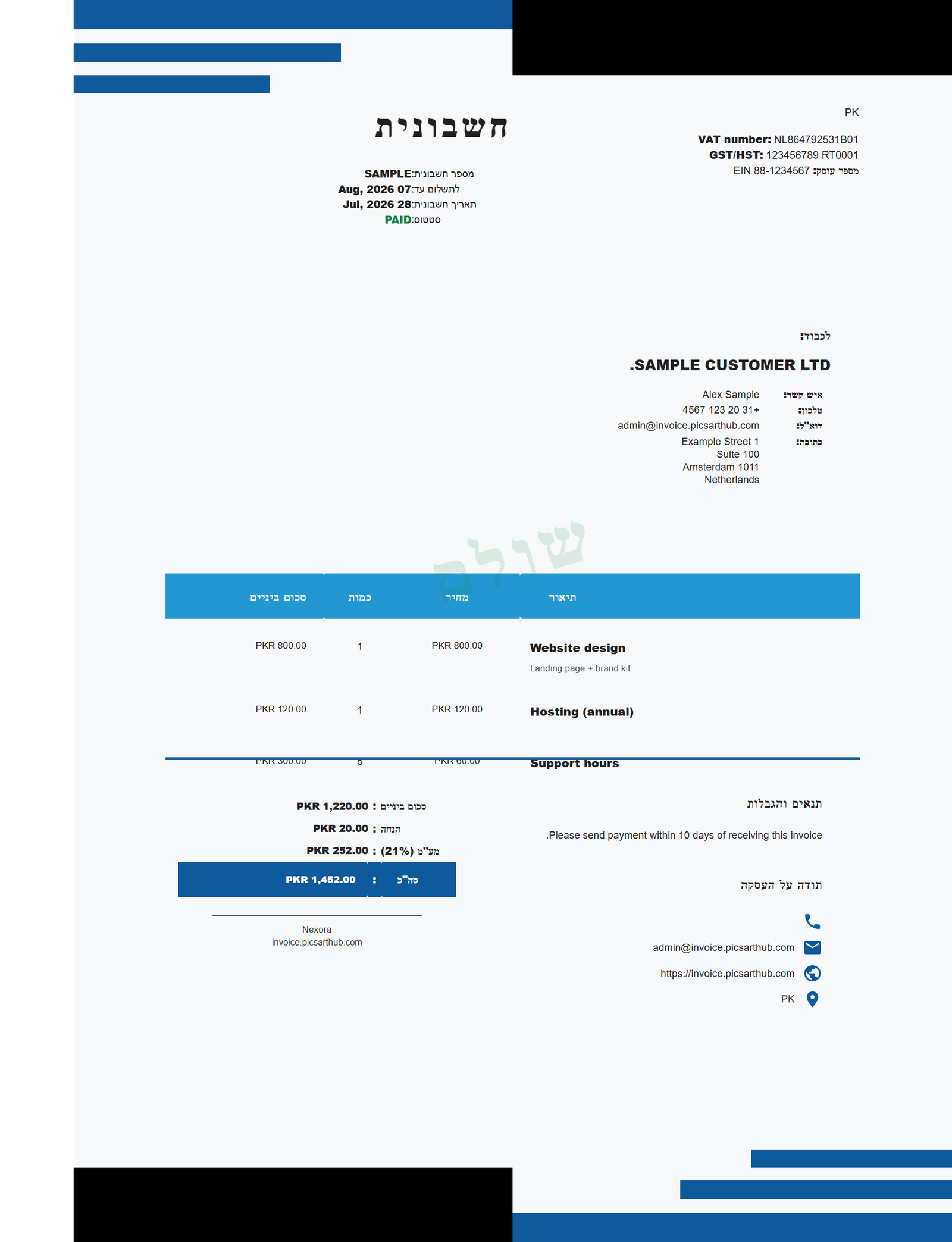
Print the customer-facing document in a chosen language. Set a store default under Settings → Documents → Language & direction, or set it per document (on the invoice editor and the WooCommerce order screen). The built-in labels (Invoice, Bill To, Subtotal, Tax, Total, and the rest) translate automatically.
| Built-in languages | French, German, Spanish, Dutch, Italian, Portuguese |
|---|---|
| Right-to-left | Hebrew: the whole document renders right-to-left using the bundled font, no extra setup |
| Default | With no language chosen, documents render exactly as before; your admin screens stay in English |
| Arabic | Not offered yet: the bundled PDF engine cannot join Arabic letters correctly |
Dashboard & exports
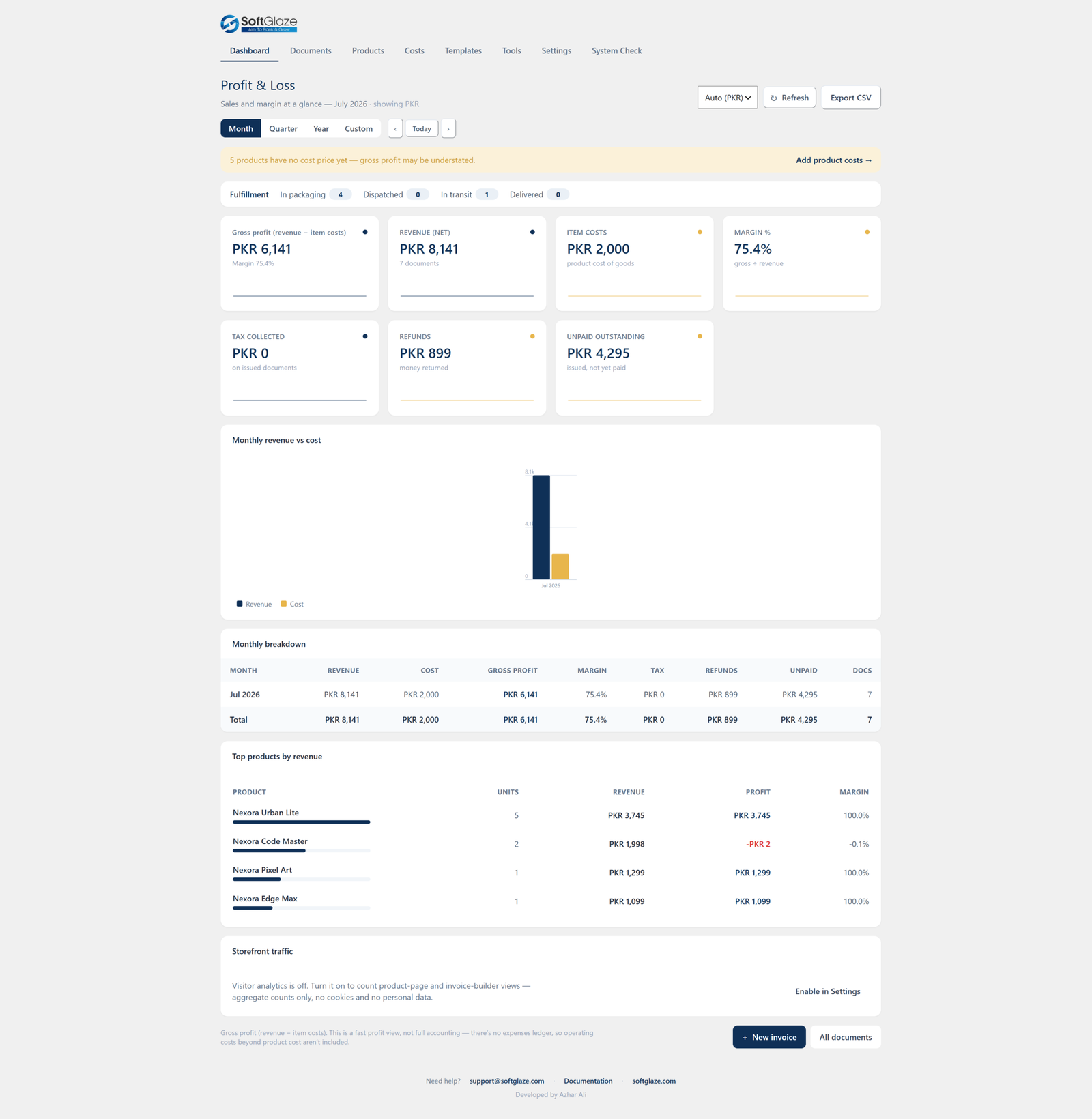
Profit & Loss dashboard
A dashboard with Revenue, Item costs, Gross profit, Margin %, Tax collected, Refunds and Unpaid outstanding, with a month / quarter / year / custom switcher, inline charts, a monthly breakdown and top products, all exportable to CSV. It is honestly labelled "gross profit = revenue − item costs": sales-and-margin at a glance, not double-entry accounting. A private Cost price field on each product feeds the margin maths.
Documents manager & accounting exports
- A searchable, filterable Documents manager across WooCommerce and manual documents, with source / type / status / stage / date filters and bulk actions (generate, email, download a ZIP).
- Export the Documents list to CSV or XML, respecting your active filters, and each document to a UBL-lite XML.
- Branded product-catalog PDFs and product-list CSV / XML exports.
- Import from WooCommerce, backfill existing orders into the unified Documents list by status and date range, with a resumable progress bar.
Cloud backup (optional)
Copy every generated document to your own Dropbox or Google Drive, mirroring the local folder layout (/SoftGlaze Invoices/{Year}/{Month}/).
- You use your own app credentials via a standard OAuth flow, there is no SoftGlaze server in the middle.
- Refresh tokens are stored encrypted at rest on your server (libsodium or OpenSSL, keyed from your site's secret keys).
- Background uploads with automatic retry, a "Backup everything now" backfill, per-destination enable, a connection test, and a disconnect that revokes and deletes the stored tokens.
- Nothing is uploaded (and no backup task is even scheduled) until you connect an account. Off by default.
Public invoice-builder website
Let visitors sign up and make their own PDF invoices, no WooCommerce needed.
Four shortcodes assemble a complete self-service invoice site:
| Shortcode | What it does |
|---|---|
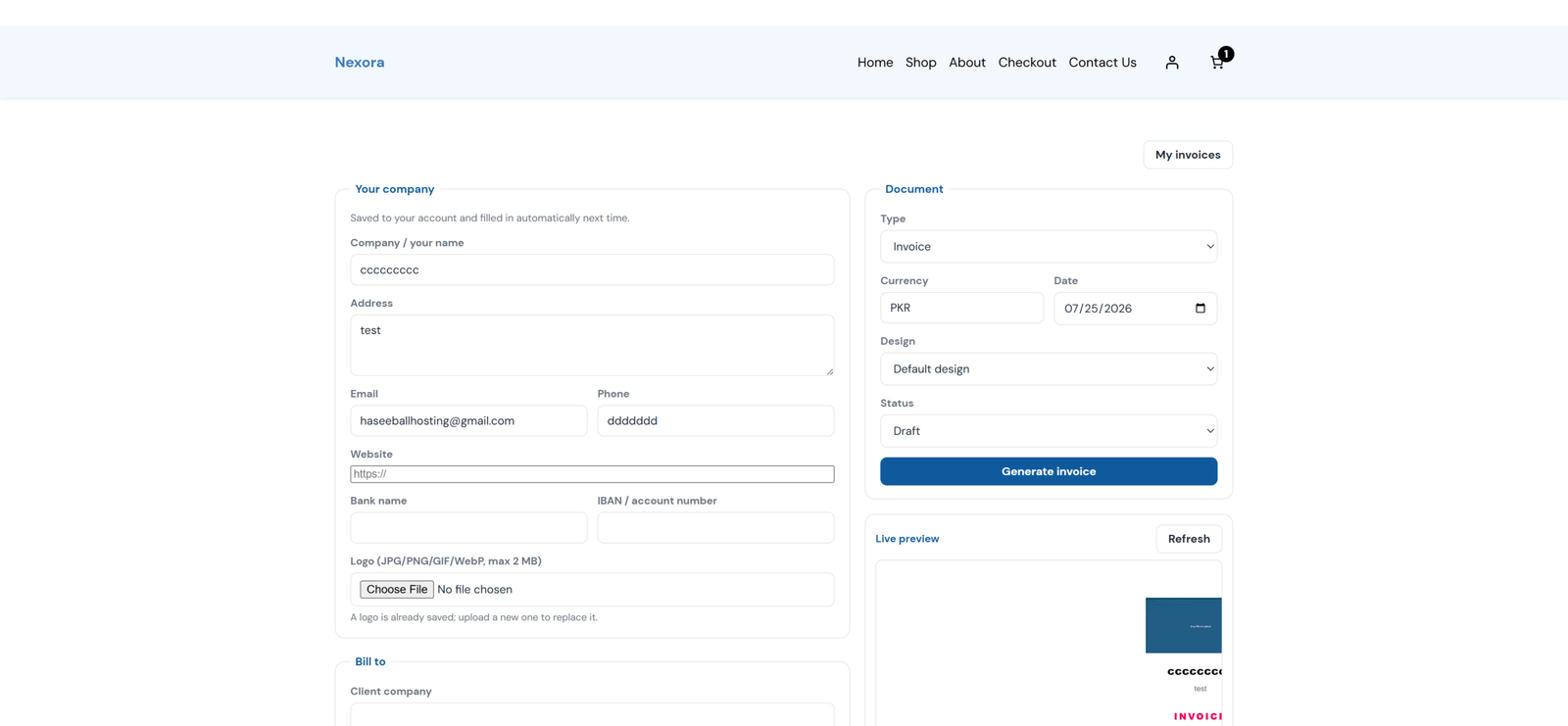
[sgci_invoice_builder] | The full builder: company details saved per user, client, line items, currency, a design picker, a live preview, and Generate → PDF + share link. |
[sgci_my_invoices] | Each user's own documents: search, download, duplicate, copy a share link, delete. |
[sgci_dashboard] | Invoices and a "Create invoice" builder together on one page as simple tabs. |
[sgci_login] / [sgci_register] | Self-contained sign-in / create-account with an on-site "forgot password" flow, no wp-login screen. |
- Under Settings → Frontend, enable the master switch (off on existing sites, on for brand-new installs). Choose which templates the builder may offer, a per-user daily limit, default currency and terms.
- Allow sign-ups in Settings → General, or place
[sgci_register]on a page. - Create a "Create invoice" page with
[sgci_invoice_builder my_invoices="/my-invoices/"], a "My invoices" page with[sgci_my_invoices builder="/create-invoice/"], and a "Sign in" page with[sgci_login]. - Add them to your menu. When WooCommerce is active, the same view also merges into a My Account → Invoices tab (configurable location).
Privacy, security & external requests
The default install makes zero external requests, the PDF engine always renders locally. Exactly three opt-in features can ever reach the network, each off by default and disclosed in a settings notice:
- EU VIES VAT check: a checkout VAT number is sent to the official EU VIES service to confirm it exists.
- Cloud backup: documents are uploaded to your own Dropbox / Google Drive using your own app credentials.
- WhatsApp Cloud API sending: a share link is sent to the customer via your own WhatsApp Business account (
graph.facebook.com).
- Generated files live in a protected uploads directory (deny-all + index guard) and are served only through capability- and ownership-checked endpoints.
- Every AJAX / REST / form action carries a nonce and a capability check; input is sanitised and output escaped.
- Every feature added since your current version is off by default and update-safe, nothing about your existing checkout, documents, emails or numbering changes until you opt in.
For developers
Human-readable React source ships in src/. Two filters let you reshape output in code:
// Modify a named template before it renders a document type
add_filter('sgci_document_template_json', function($template, $doc_type){
    // return a modified template array (name, base_preset, tokens, sections, doc_types)
    return $template;
}, 10, 2);

// Post-process the final document HTML immediately before the PDF is rendered
add_filter('sgci_document_html', function($html, $invoice){
    return $html;
}, 10, 2);
Dynamic template tags
One shared engine resolves tags across PDFs, emails and reminders. Values are output-escaped; an optional key allowlist restricts which meta keys resolve.
{invoice_number}{order_number}{date}{due_date}{customer_name}{company_name}{total}{amount_paid}{balance_due}{share_url}{carrier}{tracking_code}{tracking_url}{shipping_date}{delivery_date}{stage}{accepted_by}{accepted_on}{order_meta:key}{user_meta:key}
Other extension points include the sgci_import_number_meta_keys filter (add invoice-number sources to detect when migrating) and sgci_tracking_sources (add shipment-tracking sources).